The Future of Work is Here: How Modern Desktop Virtualization Empowers Your Team (and Your Bottom Line)
Imagine this: Your manufacturing team needs to access critical CAD software from the shop floor, the home office, and a client site—all in the same week. Or your accounting firm just onboarded five seasonal auditors who need secure access to sensitive financial data without waiting weeks for new laptops. Sound familiar? Modern desktop virtualization can empower your team (and your bottom line).
Desktop virtualization makes these scenarios not just possible, but simple. And the best part? It’s no longer reserved for enterprise giants with massive IT budgets. Today’s solutions are designed with small and mid-sized businesses in mind.
Let’s explore how modern desktop virtualization can transform the way your organization works—without the tech headaches.
What Is Desktop Virtualization, Anyway?
Think of desktop virtualization as running your computer “in the cloud” instead of on a physical machine sitting under your desk. Your team members can access their familiar Windows desktop, applications, and files from almost any device—whether that’s a laptop at home, a tablet on a job site, or a thin client terminal on the manufacturing floor.
There are two main flavors:
- Desktop or Device as a Service (DaaS): Your desktops live in the cloud, managed by providers like Microsoft or Citrix. You pay a predictable monthly fee, and someone else handles the heavy lifting.
- Virtual Desktop Infrastructure (VDI): You host virtual desktops in your own data center, giving you more control but requiring more hands-on management.
Popular platforms include Azure Virtual Desktop (AVD), Windows 365 Cloud PCs, Citrix DaaS, and Omnissa Horizon (formerly VMware Horizon). Each has unique strengths, and the right choice depends on your organization’s size, industry, and specific needs.
Why Desktop Virtualization Makes Sense Right Now
You might be wondering: “Is this really the right time for my business to make this change?” Here’s why the answer is increasingly “yes.”
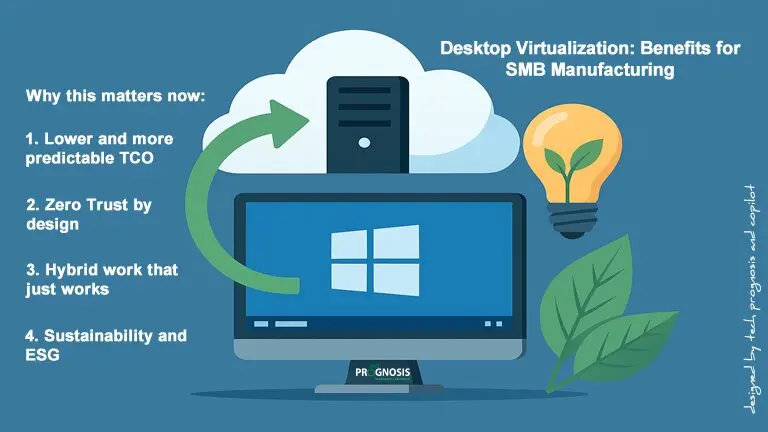
Costs You Can Actually Predict
Let’s be honest—budgeting for IT can feel like guessing the weather. Between hardware replacements, software updates, and unexpected repairs, costs can spiral quickly.
Analyst research suggests that hosted virtual desktops are often cheaper to operate than traditional laptops, especially when you factor in thin client devices. Industry projections indicate that by 2027, virtual desktops will be cost-effective for the vast majority of workers. That’s a major shift from just a few years ago.
Real-world example: A 50-person manufacturing company in Ohio switched from replacing aging PCs every four years to using thin clients with Azure Virtual Desktop. They cut their endpoint hardware costs by nearly 40% and eliminated most of their “emergency laptop replacements” budget entirely.
Security That Keeps Up with Modern Threats
Here’s something that keeps many business owners up at night: data breaches. When your team uses traditional laptops, sensitive files can end up scattered across dozens of devices. Lose one laptop at an airport, and you’ve got a potential crisis.
Virtual desktops flip that script. Your data stays centralized in the cloud or data center—not on the device itself. This approach aligns beautifully with Zero Trust security principles, a framework recommended by the National Institute of Standards and Technology (NIST SP 800-207). Every session requires verification, and access controls are enforced automatically.
Real-world example: A legal firm in Denver had a contractor’s laptop stolen from a coffee shop. Because they used Windows 365 Cloud PCs, the firm simply revoked access remotely. No client data was compromised, no frantic calls to clients, no sleepless nights.
Hybrid Work That Actually Works
The hybrid work model isn’t going away. Research consistently shows that flexible work arrangements remain the dominant preference globally. But supporting hybrid work with traditional IT infrastructure can be a nightmare of VPN issues, inconsistent experiences, and “it works on my machine” frustrations.
Microsoft’s Windows App has made significant strides in improving the virtual desktop experience—smoother sign-ins, better video calls in Teams, improved multi-monitor support, and easier device connections. Whether your team is at headquarters, working from home, or visiting a client site, they get the same reliable experience.
A Greener Footprint
Sustainability matters—to your team, your customers, and increasingly, to regulators. Here’s a compelling fact: thin client devices typically draw just 8 to 15 watts of power, compared to 60 to 100 watts for traditional desktop PCs.
When you scale that across an organization, the savings are substantial—not just in electricity bills, but in reduced HVAC loads and a smaller carbon footprint. Studies have shown these energy benefits hold up even when you account for data center power usage, as long as you tune idle behavior appropriately.
Real-world example: A small government contractor in Virginia replaced 30 desktop computers with thin clients connected to Azure Virtual Desktop. Their monthly electricity costs dropped noticeably, and they earned recognition in their annual sustainability report.
A Quick Look at the Major Platforms
Let’s break down the options in plain language:
Azure Virtual Desktop (AVD): Runs exclusively in Microsoft’s Azure cloud. A standout feature is Windows 11/10 multi-session, which lets multiple users share a single virtual machine—reducing costs significantly for knowledge workers. Autoscaling adjusts capacity based on demand, so you’re not paying for resources you’re not using.
Windows 365 Cloud PCs: Each user gets their own personal Windows desktop in the cloud, with predictable per-user pricing. It integrates seamlessly with Microsoft Intune for device management and Entra ID for identity. Government editions meet strict U.S. compliance requirements, including FedRAMP High, CJIS, and IRS 1075.
Citrix DaaS: A cloud-managed platform that works across Azure, AWS, Google Cloud, and on-premises environments. The HDX protocol delivers excellent performance, even over challenging network connections—great for teams that travel or work in areas with inconsistent internet.
Omnissa Horizon: Formerly VMware Horizon, this platform offers the Blast Extreme protocol with advanced video and audio optimizations. App Volumes and Workspace ONE simplify desktop management and reduce ongoing operational costs.
GPU Virtualization (NVIDIA vGPU): For teams running demanding software like CAD, CAE, or AI workloads, GPU virtualization lets you share powerful graphics processing across multiple virtual machines—or dedicate multiple GPUs to a single user for maximum performance.
Windows 365 Link Devices: Purpose-built hardware designed for Zero Trust environments. These secure endpoints have no local storage for data or applications, include TPM 2.0 and Secure Boot, and are perfect for kiosks or shared workstations.
Desktop Virtualization Guidance for Your Industry
1: Small and Mid-Sized Manufacturers
If you run a manufacturing business, you’re juggling a lot: protecting valuable intellectual property, supporting engineers who need high-powered CAD software, keeping shop floor terminals running smoothly, and enabling your hybrid workforce.
What works well:
- Pooled Azure Virtual Desktop sessions for office staff and plant workers. Multi-session capabilities mean fewer virtual machines to manage, and autoscaling matches capacity to your shift schedules automatically.
- Windows 365 Enterprise for engineers who need persistent, high-performance desktops with consistent settings and robust security policies.
- GPU-backed virtual machines for CAD, CAE, and visualization work. NVIDIA vGPU lets your designers work with complex 3D models without needing expensive local workstations.
- Windows 365 Link devices for shop floor terminals and kiosks. With no local data storage, these devices are inherently more secure and easier to manage.
Real-world example: A metal fabrication company in Michigan deployed thin clients on their production floor, connected to pooled Azure Virtual Desktop sessions. Machine operators can log in, access the applications they need, and clock out—without worrying about machine-specific problems. When a thin client fails, they simply swap it out and keep working.
2: Professional Services Firms
Whether you’re in IT consulting, legal services, accounting, or design, your challenges likely include securing client data, enabling BYOD (bring your own device), streamlining onboarding and offboarding, and keeping collaboration tools like Teams running smoothly.
What works well:
- Windows 365 Enterprise for consultants and client-facing staff who need their own dedicated cloud desktop with fixed, predictable billing.
- Pooled AVD sessions for internal teams where multi-session economics make sense.
- Windows 365 Frontline for part-time workers, interns, or seasonal auditors—a single license covers up to three cloud PCs used non-concurrently.
- Citrix DaaS or Horizon when you need advanced protocol optimizations for media-heavy collaboration or when your team works in locations with inconsistent network quality.
Real-world example: An accounting firm in Atlanta uses Windows 365 to onboard seasonal tax preparers in under an hour. When the busy season ends, they revoke access with a few clicks—no laptops to collect, no local drives to wipe, no data leakage concerns.
3: Public Sector and Government Contractors
If your organization handles regulated data—whether that’s CMMC, FedRAMP, CJIS, IRS 1075, or ITAR/DFARS—compliance isn’t optional. You need solutions that meet stringent government baselines while still being practical to implement and manage.
What works well:
- Windows 365 Government and GCC High editions are assessed for FedRAMP High and support additional requirements for CJIS, IRS 1075, and in GCC High environments, ITAR and DFARS.
- Azure Virtual Desktop for pooled workloads where you need granular control or multi-session cost savings, layered with Conditional Access, MFA, and comprehensive logging.
- Centralized audit trails through Intune and Entra ID reduce the overhead of demonstrating compliance during audits.
Real-world example: A defense contractor in Maryland needed to provide secure access to ITAR-controlled data for remote engineers. Windows 365 GCC High provided the compliance baseline they needed, while the Zero Trust architecture—with per-session verification and no local data storage—gave their security team confidence.
What’s Improved in Recent Years
If you explored virtual desktops a few years ago and found them lacking, it’s worth taking another look. The technology has matured significantly:
- Multi-session Windows 11/10 dramatically reduces the number of virtual machines needed for knowledge workers.
- Protocol improvements in HDX and Blast Extreme deliver smoother video calls, better compression, and lower latency—even Teams meetings work well now.
- GPU virtualization makes demanding applications like CAD and AI workloads practical in virtual environments.
- Purpose-built hardware like Windows 365 Link devices makes Zero Trust endpoints accessible and affordable.
Your Desktop Virtualization Assessment Checklist
Before diving in, take time to evaluate:
- Who needs what: Identify which team members need persistent personal desktops versus shared pooled sessions versus just specific published applications.
- Security requirements: Plan for MFA, Conditional Access, device compliance checks, and centralized logging from day one.
- Experience goals: Test the Windows App features that matter most—single sign-on, Teams optimization, multi-monitor support, and device redirection.
- Total cost of ownership: Model the full picture, including endpoint hardware, autoscaling, image management, GPU needs, and help desk impacts.
- Sustainability: Plan for thin client adoption and tune idle behavior to maximize energy savings.
Are you ready to make the move? Here is a simple checklist to help you visualize what your organization needs.
For Everyone:
User Segmentation: Who needs a super-powerful dedicated computer (Windows 365), and who can “carpool” on a shared server (AVD)?
Security Check: Are you ready to turn on Multi-Factor Authentication (MFA) and conditional access? (Hint: The answer should be yes!).
The “Green” Factor: Have you calculated how much energy you could save by switching to thin clients?
For Manufacturers:
App Compatibility: Have you tested your specific CAD or shop floor apps in a cloud environment?
Kiosk Strategy: Can you replace expensive shop floor PCs with secure, locked-down cloud terminals?
For Professional Services:
BYOD Policy: Are you ready to let employees use their own devices securely, saving you hardware costs?
Burst Capacity: Do you have a plan for seasonal interns or sudden project spikes?
For Public Sector:
Data Mapping: Do you know exactly which data requires FedRAMP High or ITAR compliance?
Audit Trail: Is your logging set up to satisfy a CMMC auditor?
Getting Started: A Phased Desktop Virtualization Approach
Moving to the cloud doesn’t have to happen overnight. In fact, we recommend a “Crawl, Walk, Run” approach.
Phase 0 – Discovery (2–3 weeks): Interview stakeholders, inventory applications, classify data, and establish baseline costs for energy and hardware.
Phase 1 – Pilot (4–6 weeks): Deploy Azure Virtual Desktop for 25–50 hybrid workers and Windows 365 for 10–20 high-value users. Test, gather feedback, refine.
Phase 2 – Scale Out (6–12 weeks): Expand to segmented pools, add GPU support where needed, finalize licensing, and roll out thin clients to target locations.
Conclusion: Let’s Build a Smarter Workplace
The technology landscape is moving fast. Five years ago, virtual desktops were a luxury for massive corporations. Today, they are a competitive necessity for businesses of all sizes.
Whether you want to slash your hardware budget, protect your manufacturing IP, or simply let your team work happily from anywhere, Modern Desktop Virtualization is the key. You can offer a consistent, high-performance experience that attracts top talent while keeping your data safer than it has ever been.
Don’t let aging hardware and security fears hold your business back. The cloud is open, secure, and ready for you.
Ready to Explore What’s Possible with Desktop Virtualization?
Desktop virtualization isn’t just for large enterprises anymore. Whether you’re a manufacturer looking to protect intellectual property, a professional services firm simplifying hybrid work, or a government contractor navigating compliance requirements, there’s a path forward that fits your needs and budget.
Let’s talk about what this could look like for your organization. Schedule a free 15-minute discovery call with our team to discuss your goals, challenges, and next steps. No pressure, no obligation—just a conversation about what’s possible.
Click Here to Book Your 15-Minute Strategy Session
References
- National Institute of Standards and Technology. (2020). Zero Trust Architecture (NIST SP 800-207). https://csrc.nist.gov/publications/detail/sp/800-207/final
- Microsoft. (2024). Azure Virtual Desktop documentation. https://learn.microsoft.com/en-us/azure/virtual-desktop/
- Microsoft. (2024). Windows 365 Cloud PC overview. https://learn.microsoft.com/en-us/windows-365/
- Microsoft. (2024). Windows 365 Government. https://learn.microsoft.com/en-us/windows-365/enterprise/introduction-windows-365-government
- Citrix. (2024). Citrix DaaS (formerly Virtual Apps and Desktops service). https://www.citrix.com/products/citrix-daas/
- Omnissa. (2024). Horizon documentation. https://docs.omnissa.com/
- NVIDIA. (2024). Virtual GPU (vGPU) software documentation. https://docs.nvidia.com/vgpu/
About the Author
Daniel Ihonvbere, CISM, CISSP, is a cybersecurity and risk management professional with more than a decade of experience helping small businesses navigate complex compliance and security requirements. He specializes in ISO standards, FTC Safeguards, NIST frameworks (including 800‑171 and 800‑172), TX‑RAMP, TAC 202, and other risk‑based programs.
Based in Central Texas, Daniel partners with organizations in Round Rock, Austin, and beyond to build scalable security programs that meet DoD, DFARS, and CMMC requirements under 32 CFR Part 170. He is an aspiring CMMC Certified Professional (CCP) and collaborates with Cyber‑AB‑approved partners to guide organizations toward CMMC alignment. Daniel adheres to the Cyber‑AB Code of Professional Conduct and grounds his guidance in official DoD and Cyber‑AB standards.
He regularly publishes actionable resources on CMMC, NIST 800‑171, and DFARS cybersecurity requirements.
Connect with Daniel on LinkedIn,or visit www.techprognosis.com for ongoing insights
