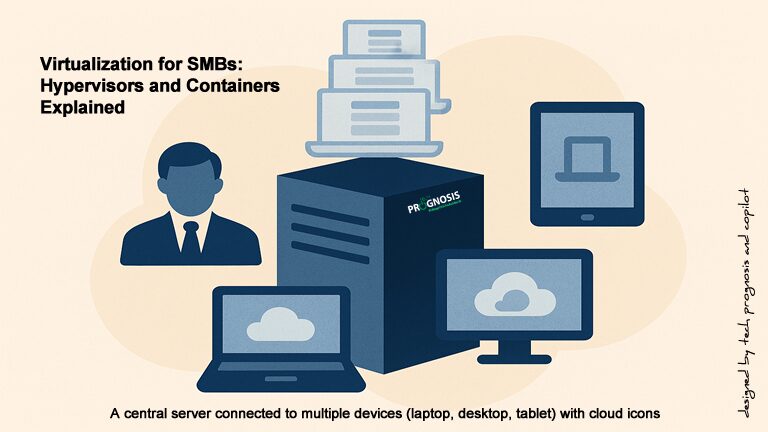
How Small Businesses Can Use Virtualization in 2026
Virtualization has moved from “promising” to practical and pervasive. In 2009, running six servers on 8 GB of RAM felt remarkable. Today, consolidation, hybrid cloud, containerization, and Desktop‑as‑a‑Service (DaaS) make modern small‑business IT more scalable, secure, and cost‑aware than ever. This guide shows how to choose—and succeed with—the right mix of virtual machines (VMs), containers, and cloud desktops for your business.
1) What “Virtualization” Means Today
Virtual machines (VMs) still anchor most business workloads. A hypervisor (like Hyper‑V, KVM, or VMware by Broadcom’s vSphere) runs multiple guest operating systems on one physical host, isolating workloads while boosting utilization. Linux’s KVM is built into the kernel, delivering near‑native performance for many workloads and supporting both x86 and Arm hosts. [kernel.org]
While cloud computing comes to mind when discussing file storage and sharing, the fact still remains that a server computer may really be all a small business or organization needs to improve business and office productivity.
Can a server computer really help your business? So many small business owners seem to think otherwise. The argument is that the old converted Microsoft Windows desktop “server” computer sitting in a corner is doing just fine.
However, that is a disaster waiting to happen and it is bound to become a great drag on business and employee productivity. Server computers are built for storing data in a central location which ultimately saves everyone a lot of time, effort and stress. Think about it for a minute. With your corporate files in a central location, there is less need for your workers or users to try and figure out where a specific file is or who is currently using a specific document. Servers also make it very easy to collaborate on numerous projects and whenever someone updates a file, the new information is instantly available to all.
If your business or organization is still operating in a Peer-to-Peer network environment, you need a network server.
Peer-to-Peer or work-group systems do not provide much in the way of security, and resource sharing can be somewhat problematic. In addition, your organization and users will have problems accessing other workstations, could lose data due to virus or spyware infection, and will likely experience intermittent Internet connectivity problems.
Computers networked in a peer-to-peer fashion may be adequate when you only have a few users on the network, but once you have more then 5 or 6 users on your business network, your organization should really consider investing in a network server computer.
What Is A Server Computer?
A network server computer allows organizations to centralize administration, data backups, file storage, share printers and documents, and host databases.
I recently got a desperate call from a friend I helped to set up a domain running Windows server 2008. Apparently, something happened and nobody could log on to the server. My first thought was password expiration so I told them to just log on as domain admin and reset the passwords of the affected users.
Things got interesting when the next question was, “What is the password?”. Now, this was a year after the initial installation and I did not have the password – as a matter of principle, I encourage clients to change the initial password after an installation is completed so they have the assurance that I will not “sneak in”. They took my advise.
Microsoft is gearing up for the release of its largest number of security updates and patches on this Patch Tuesday which will rival the previous highs of 12 security bulletins (February 2007 and October 2008). This release cycle will have 13 and also has eight bulletins that fall into the “critical” category which affects all versions of Windows, including the yet-to-be-released Windows 7. Affected software includes SQL Server, Microsoft Office, Internet Explorer, several important tools used by developers and the enterprise-grade Forefront Security client software.
I recently came across a cool tool from Microsoft called Microsoft IT Environment Health Scanner which runs more than 100 checks to help you assess the overall health of your Active Directory and network infrastructure, including the configuration of Active Directory Domain Services, DHCP, DNS, Exchange Server, network adapters, and domain controllers. If the tool detects problems, it links to Microsoft Knowledge Base articles and other Web content for resolution information. I got the tool, installed it and ran it against a client’s network and it exposed some issues in the Active Directory and network environment that could create problems during server deployments, infrastructure upgrades and migrations.
A good example of what the tool found is the exposure of what is called “Morphed Folders” in the domain controllers. Microsoft describes morphed folders as “…folders and files that have replicated to other servers and are exact copies of one another. When the File Replication Service (FRS) cannot determine which of two folders is most recent, it creates a duplicate folder. These folders are named FolderName_NTFRS_GUIDname, where FolderName is the name of the original folder and GUIDname represents a unique GUID for the morphed folder.”
Small business owners are usually forced by budget constraints to do every thing they can to save cost. In order to save on software licensing costs,for example, a small business owner may install the free version of a critical application like a firewall or anti-virus on the business computers. The task of updating these applications then falls on each user to run periodic system scans and updates.
One thing that is not common in small business environments is process automation. Most processes are manually carried out. What we have to realize is that as hard as we try, at some point, somebody forgets to run a system scan or the backup program. Occasionally, someone could accidentally turn off or stop a backup application before the process is completed.